
Quick overview: This guide explains a growing threat that tricks people into running hidden commands via the Windows Run dialog. Attackers use fake “I’m not a robot” pages to get users to paste and run code. That action launches mshta.exe to fetch a remote media file that is actually an encoded PowerShell script.
Why it matters: The script can drop information stealers like Lumma Stealer and SecTopRAT. These payloads take credentials, wallet data, and two‑factor tokens. A single compromised account can cause cascading breaches for companies and people alike.
We will show how the attack works, what traces to look for on Windows, and how to remove the infection. You’ll get practical steps for immediate containment and long‑term hardening. Layered security and web/script blocking can stop access to malicious domains before data is exposed.
Understanding clipboard hijacker malware and the fake CAPTCHA attack now impacting users
Fraudulent CAPTCHA pages are tricking visitors into pasting and running live commands on Windows. These pages look like familiar verification prompts and ask people to click a checkbox. That click lets site JavaScript copy a full Run command to the clipboard without clear consent.
The site then shows simple instructions: press the Windows key, paste, and hit Enter. Doing that executes a command that begins with mshta https:// and points to a benign‑looking media file. Attackers append a CAPTCHA‑style comment so the visible text appears harmless while the real content runs unseen.
Mshta fetches files (mp3, jpg, html, etc.) that actually contain encoded PowerShell. The script runs silently and pulls down payloads such as Lumma Stealer and SecTopRAT. These tools target credentials, crypto wallets, browser extensions, and two‑factor tokens, causing potential data loss and financial loss for victims and organizations.
- Treat any website that asks you to run a system command as untrustworthy.
- When in doubt, close the site, do not follow the steps, and consider fake CAPTCHA sites a red flag.
Detection and diagnostics: identify signs of compromise on Windows systems
First, look for user reports and system logs that point to unfamiliar Run activity or remote script retrieval. These reports often begin with a fake verification page asking users to paste and run a command.
Red flags to watch for
- Unexpected prompts to open Run, paste content, and press Enter.
- Web pages that mimic CAPTCHA or trusted media sites and ask for manual steps.
- Browsers showing clipboard or permission dialogs near the time of the incident.
Verifying command and process history
Check recent Run entries, application logs, and timestamps for mshta.exe and PowerShell. Align these with browsing history to locate suspect sessions.
Organization-level indicators
Look for spikes in outbound connections to unfamiliar hosts, blocked domains from web protection, and help desk reports describing odd verification steps. Preserve logs and capture indicators of compromise for containment and follow-up.
| Indicator | Where to check | Why it matters |
|---|---|---|
| Unexpected Run entries | Windows Run history, event logs | Shows when a remote command may have executed |
| mshta / PowerShell launches | Process logs, EDR telemetry | Common loader behavior for information stealers like Lumma Stealer |
| Domain blocks / network spikes | Web proxy, firewall, DNS logs | Corroborates attempted remote file retrieval |
Tip: If you suspect credential exposure, act quickly to reset passwords, revoke sessions, and run full scans. For guidance on related scams and hardening, see how to avoid crypto scams.
Step-by-step removal and prevention: stop the threat and harden your environment
Begin cleanup with network isolation, then identify and halt any running script hosts or unexpected processes. Disconnect affected Windows systems from Wi‑Fi or Ethernet to stop outbound calls. Pause user activity and preserve logs for analysis.
Terminate and restrict: kill mshta.exe and related script hosts, inspect startup items, scheduled tasks, and recent downloads for disguised media files, and delete confirmed loaders. Apply Group Policy or application control to restrict mshta where feasible.
Run comprehensive scans: use reputable anti-malware tools (ThreatDown, Malwarebytes) with web/script blocking enabled to detect Lumma Stealer and SecTopRAT. Rotate credentials and revoke tokens if compromise is suspected.
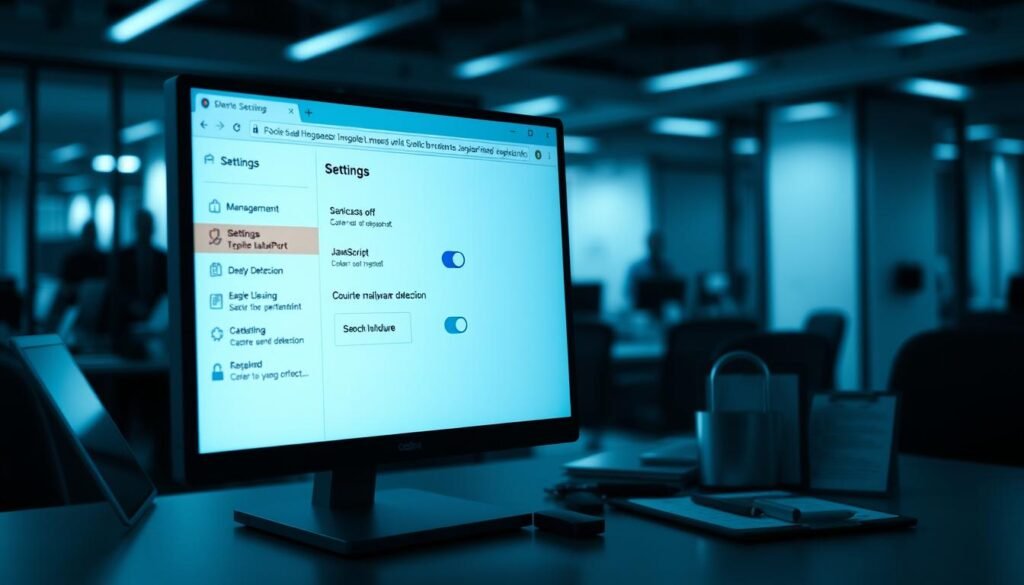
Browser hardening and javascript options
Harden browsers by tightening site permissions for clipboard and script access. Use reputable extensions that block malicious domains and scam pages.
- Chrome: Menu > Settings > Privacy and security > Site settings > JavaScript — set to Don’t allow or add per-site rules.
- Edge: Settings > Cookies and site permissions > JavaScript — toggle off or configure allow/block lists.
- Firefox: about:config, set javascript.enabled to false to disable scripts on untrusted pages.
- Opera: Settings > Privacy & Security > Site Settings > JavaScript — choose Don’t allow or add exceptions.
Training and enterprise controls
Teach users that no legitimate website should ask them to open Run, paste commands, or press the Windows key and Enter. Encourage immediate reporting of such instructions.
At scale: deploy real-time detection, automated endpoint isolation, behavior monitoring, and curated domain blocklists to stop remote script retrieval and limit loss.
| Action | Purpose | Where to configure | Recommended tools |
|---|---|---|---|
| Network isolation | Stop data exfiltration and remote retrieval | Local network, switch, Wi‑Fi | EDR, firewall, NAC |
| Block mshta.exe | Prevent script-based loaders | Group Policy, AppLocker, Defender | Windows GPO, Microsoft Defender, AppLocker |
| Browser script control | Reduce drive-by script execution | Browser Settings > JavaScript options | Browser policies, script-blocking extensions |
| Full system scans | Detect and remove information stealers | Endpoint, scheduled scans | Malwarebytes, ThreatDown, enterprise AV |
Conclusion
Bottom line: a website prompt can convince people to paste and run a command that downloads and executes remote code on Windows. , this method uses mshta to fetch files that decode PowerShell and deliver payloads such as Lumma Stealer and SecTopRAT.
Act fast: contain suspected incidents, scan and remediate, and enforce restrictions on mshta and other script hosts. Harden browsers by disabling JavaScript on untrusted sites and tightening clipboard access.
Combine user training with layered defenses — web filtering, domain blocklists, and EDR with automated isolation — to reduce the chance of data loss. Review company policies and system controls so future attempts are blocked before information is exposed.
FAQ
What is this type of clipboard hijacker threat and how does it work?
It’s a browser-based social engineering attack that replaces copied text with malicious commands. Victims see a fake “I’m not a robot” prompt or CAPTCHA that asks them to paste a verification command into a Windows Run box or terminal. When executed, the system runs mshta or PowerShell to fetch remote scripts and drop payloads such as data-stealers and remote access tools. This can lead to credential theft, financial loss, and wider organizational compromise.
How do attackers deliver the malicious code to my system?
Attackers use compromised websites, malvertising, or phishing links to present deceptive pages. Those pages use JavaScript and HTML elements to instruct users to copy and paste a command. Once pasted and executed, mshta.exe or PowerShell contacts remote servers to download additional files, like stealer families, and run them with system privileges.
What signs should I look for on a Windows PC to detect compromise?
Look for unexpected Run prompts, sudden browser pop-ups asking to paste commands, unexplained clipboard changes, new startup items, unusual mshta or PowerShell processes, elevated network traffic to unknown domains, and alerts from endpoint protection. Also monitor for browser extensions or settings that changed without consent.
How can I verify if mshta or PowerShell were used in an attack?
Check Windows Event logs and PowerShell transcription logs for command-line activity. Review the command history in your terminal and Task Manager for recent mshta.exe or powershell.exe processes. Endpoint detection solutions can show parent-child process relationships and network connections to suspicious IPs or domains.
What immediate steps should I take if I suspect I executed a malicious command?
Disconnect the device from the network, isolate the endpoint, and power down any affected machines if instructed by your incident response team. Do not reuse compromised credentials. Collect logs, take forensic images if possible, and run a full scan with reputable anti-malware tools. Notify your IT or security team to begin containment and remediation.
How do I remove active threats like data-stealers or RATs from a system?
Use enterprise-grade anti-malware scanners and targeted removal tools from trusted vendors to detect and eliminate known families. Manually review startup folders, scheduled tasks, services, and registry Run keys for persistence. Quarantine and delete malicious files, and rebuild compromised machines if integrity cannot be assured.
Which browser and system settings help prevent these attacks?
Harden browsers by disabling JavaScript on untrusted sites, restricting site permissions, and enabling safe-browsing features. Remove untrusted extensions and use click-to-play for plugins. On Windows, block or restrict mshta.exe via AppLocker or Defender Application Control, disable unnecessary scripting hosts, and enforce least-privilege for user accounts.
How can organizations detect and block this activity at scale?
Implement real-time detection with EDR, network monitoring for anomalous outbound traffic, and automated response playbooks. Maintain domain and URL blocklists, use DNS filtering, and inspect proxy logs for suspicious mshta or PowerShell callbacks. Correlate user behavior alerts with endpoint telemetry for faster detection.
What role does user training play in prevention?
Training reduces social engineering risk by teaching users to never paste commands from web pages into system prompts, to verify unexpected verification requests, and to report suspicious sites. Regular simulated phishing tests and clear incident reporting channels further lower the chance of successful attacks.
Are free antivirus tools enough to detect these threats?
Basic antivirus may catch some samples, but advanced campaigns often use obfuscation and living-off-the-land binaries that evade simple scanners. Use layered defenses: endpoint detection and response, threat intelligence, and behavioral analytics from reputable vendors for better coverage against complex stealers and RATs.
How should I handle potential credential exposure after an incident?
Immediately change all affected passwords from a clean device and enable multi-factor authentication everywhere possible. Revoke or rotate API keys, SSH keys, and service account credentials. Monitor accounts for unauthorized activity and report fraud to relevant financial institutions if needed.
Which indicators of compromise (IOCs) should security teams watch for?
Monitor for mshta and PowerShell command lines that download remote scripts, beaconing to unfamiliar domains, newly created scheduled tasks or services, modified startup registry keys, and unexpected file drops in temporary directories. Correlate these IOCs with web logs showing visits to suspicious sites or fake CAPTCHAs.
Can disabling JavaScript stop these attacks entirely?
Disabling JavaScript on untrusted pages significantly reduces the attack surface because many scams rely on script-driven prompts. However, attackers can still use social engineering through other channels. Combining JavaScript restrictions with browser policies, URL filtering, and user training provides stronger protection.
What enterprise controls help prevent execution of harmful commands?
Use application whitelisting (AppLocker, Defender Application Control), restrict script hosts, enforce least-privilege accounts, deploy EDR with script-blocking capabilities, and apply network-based blocking for known malicious domains. Automated playbooks that quarantine suspicious endpoints speed containment.
How can I safely test a suspicious command or file without risking my system?
Use an isolated virtual machine or a sandboxed environment that can be reverted. Ensure the environment has no network access or uses monitored, controlled connectivity. Submit samples to reputable threat intelligence services or your security vendor for analysis rather than executing unknown code on production systems.

No comments yet