
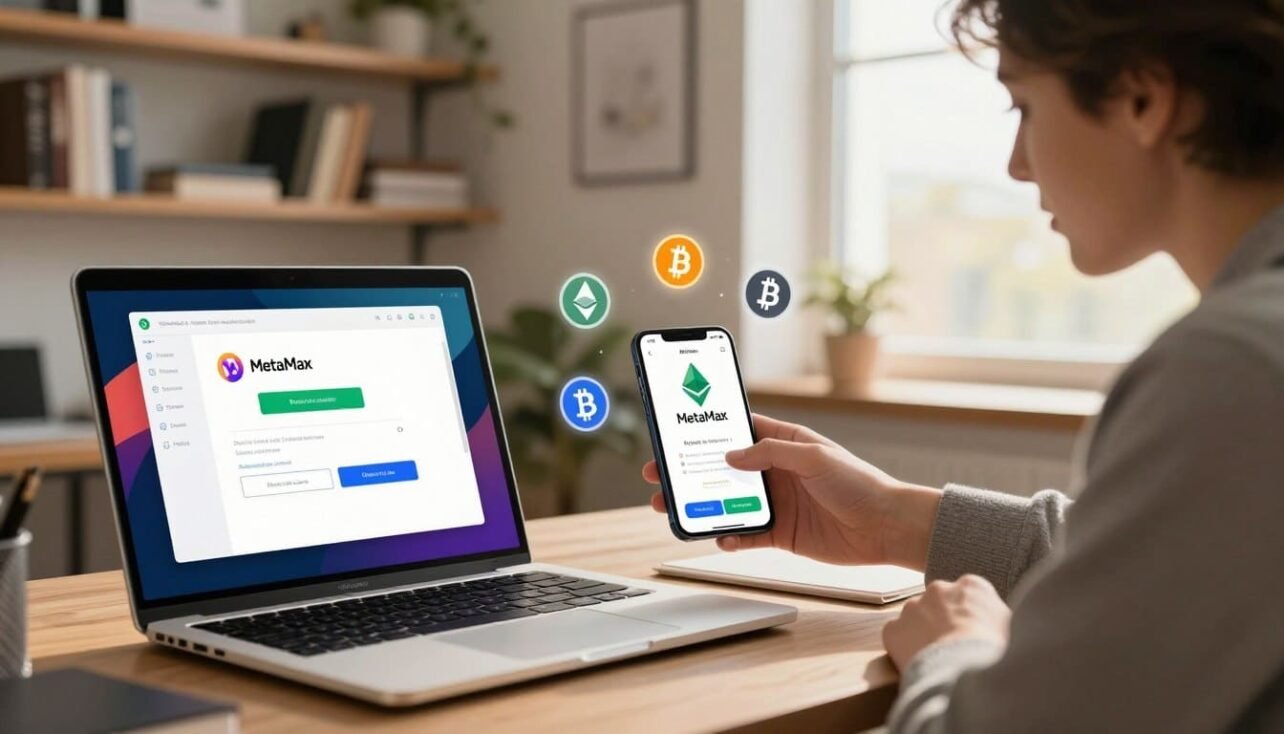
Quick guide: This short intro explains what you will learn in this step-by-step metamask wallet tutorial. You’ll see how to install the extension, create or import a wallet, back up your key phrase, and fund your account to start using dapps. The focus is on clear, safety-first instructions so you can manage your crypto with confidence.
The app appears as a browser extension for desktop and as a mobile app for on-the-go use. You keep control: MetaMask does not collect your email, password, or Secret Recovery Phrase. That means self-custody of keys and direct access to funds and decentralized applications without a custodian holding your details.
In this guide you will learn installation steps, backing up your recovery phrase, funding via card or transfer, sending tokens, and connecting to dapps. You’ll also learn how to switch networks like Ethereum, Polygon, Arbitrum, Optimism, BNB Smart Chain, and Linea, plus built-in buy/sell options and resources for gas, swaps, and hardware connections.
What MetaMask Is and Why It Matters Today
Quick overview: A self-custodial crypto tool runs as a browser extension and as a mobile app, letting users manage Ethereum accounts and interact with decentralized applications from desktop or phone.
Self-custody explained: You control access with a Secret Recovery Phrase. No company stores your email, password, or secret recovery data. If you lose the phrase, no one can restore your account.
Desktop extension vs. mobile app
The browser extension fits desktop tasks like dapp development and multi-tab workflows. The mobile app is best for quick transactions and on-the-go dapp access.
| Feature | Desktop extension | Mobile app |
|---|---|---|
| Main use | Long sessions, dapp interactions | Quick sends, mobile dapps |
| Strength | Full interface, easier network management | Portable, push approvals |
| Typical action | Connect to decentralized applications | Approve transactions on the move |
Basic features include viewing balances, sending and receiving assets, switching networks, and connecting to dapps with one click. Your account shows a public 0x address for receiving funds; keep private keys secret. Learn terms like gas, tokens, and networks to avoid mistakes. For a deeper introduction, see this overview of the service.
Safety First: Secret Recovery Phrase, Passwords, and Phishing
Start security-first: the words you receive at setup are the master key to every account. Keep them offline and private.
Creating and backing up your SRP
During setup you will see a 12-word secret recovery phrase. Write the entire recovery phrase down exactly as shown.
Store multiple backups in secure offline locations that only you control. If you lose the phrase, you lose access; if someone else gets it, they control your funds.
Best practices for passwords and storage
Create a strong, unique password to unlock the extension or app. That password protects the device but does not replace the recovery words.
Avoiding phishing and fake stores
MetaMask will never spontaneously ask for your secret recovery or require you to type it into a website. Close any pop-up or page that demands those words.
- Never share the phrase via chat, email, or screenshots.
- Only install official extensions and apps from verified publishers.
- Watch for fake domains, pop-ups, and social-engineering phishing.
| Action | Why it matters | Quick tip |
|---|---|---|
| Write SRP offline | Prevents remote leaks | Use metal or paper backups |
| Use a strong password | Protects local access | Combine length and randomness |
| Verify sources | Stops fake extensions | Check publisher and URL |
| Re-check in Settings | Confirms correct recovery | Open Security > Reveal to verify |
Download and Install MetaMask on Your Browser
Begin by visiting the official site to download the browser extension safely.
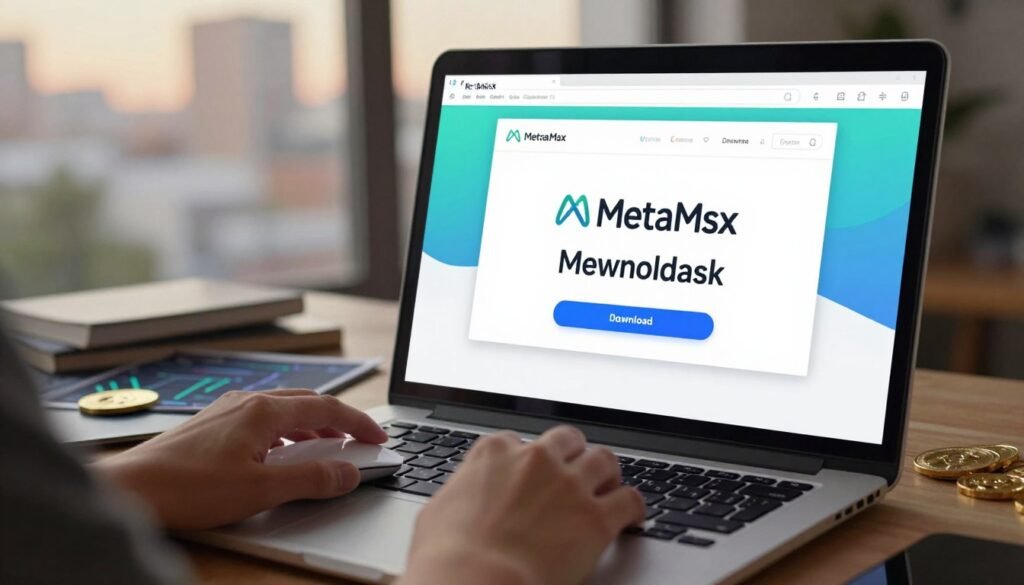
Step one: Go to metamask.io and click Download. Choose “Install MetaMask for Chrome” to open the Chrome Web Store listing.
Verify the publisher
Make sure the listing shows the legitimate publisher before you add extension. Counterfeit listings can look similar, so check the publisher name and reviews.
Add and pin the icon
Click Add to Chrome and approve Add Extension. Wait a few seconds for installation to finish.
Open the puzzle menu (extensions icon), then pin the fox icon so it appears in the top right corner of your browser toolbar.
- If you use Firefox, Edge, or Brave, follow similar steps from their official stores and verify the publisher.
- Avoid search ads; start at the official site to reduce fake store risks.
- After installation, click the fox icon to open the setup flow and begin creating or importing a secure account.
| Action | Where | Quick tip |
|---|---|---|
| Download | metamask.io | Start from the official site |
| Add extension | Chrome Web Store | Verify publisher name |
| Pin icon | Extensions (puzzle) menu | Shows fox icon in the right corner |
For secure setup steps after installation, see this guide on how to set up a secure crypto account in the U.S.: set up a secure crypto wallet.
Install the MetaMask Mobile App
You can get the official app from the iOS App Store or Google Play to use crypto features away from your desktop.

Where to find it: Open the iOS App Store or Google Play and search for the app name. Verify the developer and the fox logo before you tap Install.
App Store and Google Play guidance
Download only from the official store listing to avoid malicious copies. After install, the fox icon confirms a valid app.
- Tap the App Store or Play listing and confirm the verified developer.
- Create a new account in-app or import using your recovery phrase if you already use the extension.
- Keep the device updated and enable biometrics or a strong passcode to protect access.
Extension vs. mobile app: when to use each
The browser extension is best for desktop dapps and multi-tab work. The mobile app excels at QR logins and on-the-go transactions.
| Use case | Browser extension | Mobile app |
|---|---|---|
| Best for | Desktop dapp sessions | Quick approvals and mobile dapps |
| Typical actions | Multi-tab management | QR logins, WalletConnect |
| Core features | Balances, send/receive, network switch | Same core features plus in-app browser |
metamask wallet tutorial: Create or Import Your Wallet
Begin setup by clicking Get Started, then select Create a new wallet and follow the prompts. You will be asked whether to opt in to analytics; choose what you prefer and proceed to set a strong password.
Set a strong password that is unique to this browser extension. This password protects the local session but does not replace your Secret Recovery Phrase.
Create a new wallet and secure the phrase
Watch the short in-app video that explains how keys and self-custody work before revealing the phrase. Then reveal the 12-word Secret Recovery Phrase, write it down exactly, and complete the confirmation step.
Import or connect hardware
If you already have an account, choose Import using the secret recovery phrase to restore it on this device. For added security, you can connect a hardware device later and manage transactions through the extension interface.
- Open the extension, choose Create a Wallet, and set a unique password.
- Reveal and back secret recovery words offline; avoid screenshots and cloud notes.
- Confirm the phrase on the next screen and name your first account for clarity.
- Connect a hardware device for large balances or revisit Settings > Security to re-check the phrase.
| Action | Where | Quick tip |
|---|---|---|
| Create new account | Get Started > Create a Wallet | Set a long, unique password |
| Back secret recovery | Reveal phrase screen | Use multiple offline copies, store securely |
| Import existing account | Import using recovery phrase | Paste phrase only in the extension, never online |
| Hardware connection | Connect hardware in Settings | Use for large holdings and extra safety |
Navigating the Interface: Accounts, Addresses, and Tokens
Click the top-right icon to access account controls, copy addresses, and review tokens. This opens the main view where you can confirm the active account and the selected network before acting.
Open the app and copy your address
Open MetaMask from the fox icon and confirm you’re on the intended network. Click the 0x… string at the top to copy your public address for receiving funds.
Account details and activity
Click the three dots to view Account Details. From there you can rename the account, reveal the address QR, or jump to Etherscan to check confirmations.
Tokens, Assets, and Activity screens
The Assets screen shows token balances and holdings. The Activity screen lists recent transactions and their status.
- Add missing tokens via Import Tokens and paste a verified contract address if a balance does not appear.
- Create extra accounts under the same SRP to separate funds or dapp activity, and label each account clearly.
- Always verify amounts and token symbols before sending to avoid cross-network mistakes.
| Action | Where | Quick tip |
|---|---|---|
| Open interface | Fox icon (top-right) | Confirm network before any action |
| Copy address | 0x… string | Share only the public address for incoming funds |
| View details | Three dots > Account Details | Use Etherscan to verify tx confirmations |
| Check balances | Assets screen | Import token contracts if missing |
Fund Your Wallet: Buy, Receive, or Transfer Crypto
To start using dapps and sending tokens, you first need to add funds via integrated providers or by receiving a transfer from another address.
Buy with a card or bank transfer: Use the Buy button in the app to compare quotes from partners like Transak, MoonPay, or Coinbase Pay. These providers accept debit credit cards, Apple Pay/Google Pay, and some bank transfers depending on region.
Compare fees and delivery times before you commit. KYC rules and limits vary by provider, so choose the option that fits your needs.
Receive from another address or exchange
Copy your 0x address and paste it into the sending service. When moving funds from a CEX or a friend, make sure you select the correct network (Ethereum Mainnet, Polygon, etc.) and token type.
- Use Buy to check multiple providers and fund your account with cards or bank options.
- Make sure the network matches the token so assets land where expected.
- Start small on your first purchase to confirm delivery and gas behavior.
- Never share your secret recovery phrase or recovery words during any purchase flow.
- If a token is missing after a transfer, add it manually via a verified contract address and confirm decimals/symbols.
| Action | Typical providers | Quick tip |
|---|---|---|
| Buy crypto | Transak, MoonPay, Coinbase Pay | Compare quotes and KYC needs |
| Receive from CEX | Coinbase, Kraken, Binance | Copy 0x address and confirm network |
| Post-transfer check | Block explorer | Verify transaction hash and token contract |
Send Crypto and Manage Gas Fees
A quick, secure send starts with confirming the address and holding enough native token for gas. Small checks prevent permanent errors because crypto transfers are irreversible.
Send flow on the browser extension
Open the extension from the top right corner icon and click Send. Paste the destination address, select the token, and set the amount.
Review the gas fee and the total on the confirmation screen, then Confirm. Keep a small native balance (ETH, MATIC, etc.) so the transaction can pay fees.
Send flow on the mobile app
Tap Actions > Send on the mobile app. Choose the asset, enter or paste the recipient address, and add the amount.
Preview fees, then tap Send. The mobile screen shows the same key details—token symbol, amount, and fee—before you finalize.
Gas estimates, speed up, and cancel tips
Use the gas edit panel to pick faster or cheaper execution based on network congestion. Faster gas costs more but confirms sooner.
If a transaction stalls, use Speed Up to resubmit with higher gas or Cancel to replace it before confirmation. Track status in Activity after you open metamask from the right corner icon.
- Always confirm token symbol and amount on the confirmation screen.
- Send during low congestion to save on gas when possible.
- Retrieve the transaction hash from Activity to check a block explorer.
| Action | Where | Quick tip |
|---|---|---|
| Start send | Browser extension / Mobile app | Open from the top right corner icon to begin |
| Confirm fees | Confirmation screen | Check gas and total before you hit Confirm |
| Troubleshoot | Activity screen | Use Speed Up or Cancel; copy hash to track |
Networks and Dapps: Switch, Add, and Connect Securely
Before interacting with a dapp, confirm the network and connected site to reduce risk. Use the network dropdown at the top of the interface to switch among Ethereum, Polygon, Arbitrum, Optimism, BNB Smart Chain, and Linea.
Add new networks via Settings > Networks > Add Network by entering RPC URL, Chain ID, and symbol. Or use Chainlist.org to add verified RPC details quickly.
When you add a chain, make sure RPC details match official documentation. Fake endpoints can expose transactions or tokens to risk.
Connecting and managing dapps
Only connect from official domains and review permission requests before you approve. Manage connected sites in the Connected Sites panel and revoke access you no longer need to improve security.
- Verify token symbols and balances when you switch networks so displayed tokens are correct.
- Some chains appear preloaded and the extension automatically switches context for transactions and applications.
- Use explorers like Etherscan, Polygonscan, or Arbiscan to confirm activity on the selected chain.
Buy and Sell Inside MetaMask: On-Ramps, Off-Ramps, and Cashing Out
Buy crypto directly from the app using integrated partners. Providers like Transak, MoonPay, and Coinbase Pay let you pay with Apple Pay, Google Pay, debit/credit cards, or bank transfers where supported.
Compare fees, KYC, and supported tokens before you commit. Each provider shows quotes, limits, and identity checks. The app does not store your payment data; partners handle fiat on their platforms.
How to sell and cash out
Use the Sell option in MetaMask Portfolio to withdraw fiat to a linked bank or PayPal in supported U.S. regions and select European markets.
Follow the provider prompts for identity verification and confirm which tokens are supported—ETH and stablecoins are common choices.
- Click Buy to compare quotes and pay with Apple Pay, Google Pay, or debit/credit cards.
- Review fees, settlement times, and KYC steps to find the best total price.
- Use Sell to off-ramp to bank or PayPal; track orders in the provider interface and Portfolio.
- Keep a small native balance for gas during swaps or transfers when cashing out.
- For larger holdings, pair the app with a hardware wallet to protect keys while using on/off-ramps.
| Action | Providers | Notes |
|---|---|---|
| Buy crypto | Transak, MoonPay, Coinbase Pay | Pay with Apple Pay, Google Pay, debit/credit, or bank transfer; compare quotes |
| Sell / Off-ramp | Integrated fiat partners via Portfolio | Withdraw to bank or PayPal in supported regions; KYC required |
| Supported assets | ETH, stablecoins, major tokens | Confirm token support before selling to avoid delays |
| Security tip | Hardware wallet | Use for large accounts while performing in-app buys/sells |
Conclusion
To finish, adopt a simple routine for backups, verification, and careful sending to protect funds.
Keep backups offline, and store your recovery phrase in more than one secure place. Your password only unlocks the local app; the secret recovery words restore accounts.
Verify official sources when you add extension or install metamask from the browser or the app store to avoid phishing. Double-check the recipient address, network, and tokens before every send.
For long-term holdings, use a hardware wallet and manage connected sites regularly. With verified installs and steady habits, you can access wallet features safely and use on/off-ramps with confidence.
FAQ
What is this browser extension and mobile app, and why should I use it?
This software acts as a self-custody crypto account manager that runs as a browser extension and a mobile app. It lets you store addresses, view tokens, connect to decentralized applications, and interact with blockchains like Ethereum, Polygon, and BNB Smart Chain while keeping you in control of private keys via a Secret Recovery Phrase.
How do I create a new account and set a strong password?
After installing the extension or app, choose Create a new wallet, set a unique, strong password for local access, then reveal and securely back up the Secret Recovery Phrase. The password protects the app on your device; the recovery phrase restores your account if you lose access.
What is a Secret Recovery Phrase and how do I back it up?
The Secret Recovery Phrase is a list of words that encodes your private keys. Write it down on paper or a metal backup, store copies in separate secure locations, and never share it online. Do not store the phrase in cloud notes, email, or screenshots.
Can I import an existing account using the recovery phrase or a hardware device?
Yes. Choose Import with recovery phrase to restore an account from another app or enter your hardware wallet (Ledger or Trezor) through the extension to manage accounts without exposing private keys.
How do I safely download and install the extension in my browser?
Visit the official site, click the link to the Chrome Web Store or Firefox Add-ons, confirm the verified publisher, and add the extension. After installation, pin the fox icon in the browser’s top right corner for quick access.
How do I get the mobile app from the App Store or Google Play?
Open the App Store or Google Play, search for the official app by the developer name shown on the site, then download and open it. Verify the app’s ratings and publisher before installing to avoid fake apps.
What are the best practices to avoid phishing and fake extension stores?
Always type the official website into the address bar or use a saved bookmark, verify extension publisher details, avoid clicking unknown links, and never enter your Secret Recovery Phrase on websites or in response to messages. If in doubt, confirm via official support channels.
How do I add tokens and view my address and account details?
Open the extension or app, copy your 0x address from the account screen to receive funds, and use Add Token to add custom tokens by contract address. Use the Assets and Activity screens to track balances and transactions.
How can I buy crypto with debit or credit, and what should I check first?
Use integrated on-ramps that accept debit, credit, or Apple/Google Pay. Compare provider fees and KYC requirements before buying. Confirm you’re on the correct network and that the token is supported to avoid receiving unsupported assets.
How do I send crypto and manage gas fees on the extension and mobile app?
From the account screen, choose Send, enter the recipient address or paste your saved 0x address, select the token and amount, then review gas estimates. Adjust speed to change fees; use the speed up or cancel options for pending transactions when supported.
How do I switch or add networks like Polygon, Arbitrum, Optimism, or Linea?
Use the network dropdown to switch among common networks. To add a custom network, use trusted services like Chainlist or manual settings—enter RPC URL, chain ID, and currency symbol—and verify details from official network docs.
How do I connect to decentralized applications and manage connected sites?
When a dApp requests connection, review the permissions and accounts it requests, then approve or reject. Manage active connections via the Connected Sites or Permissions settings and revoke access for sites you no longer use.
Can I sell crypto and cash out to a bank or PayPal?
In supported U.S. regions, some providers let you sell tokens and withdraw to a bank or PayPal. Check KYC requirements, supported tokens, fees, and processing times before initiating a sell or transfer.
What should I do if I lose access or suspect my keys were exposed?
If you still have your Secret Recovery Phrase, immediately restore your account on a fresh install and move funds to a new address. If the phrase was exposed, assume the account is compromised and transfer assets off that account as soon as possible.

No comments yet